How to record audio while playing music on iPhone
The idea arrives.
The music doesn’t have to stop.
A line in a song opens a door. A podcast sends your mind somewhere new. Before the thought disappears, you want to say it out loud—without pulling yourself out of the moment that created it.

01 — The moment
You know the feeling.
You are halfway through a track, walking somewhere with your AirPods in. Or a speaker is filling the room while you work. Then a thought appears—specific, alive, and already starting to move.
Normally, capturing it means leaving the thing that sparked it. You pause the music, switch apps, wait for the silence, and try to rebuild the sentence. The note survives, perhaps. The feeling around it rarely does.
The interruption becomes bigger than the idea.
A quieter kind of recording
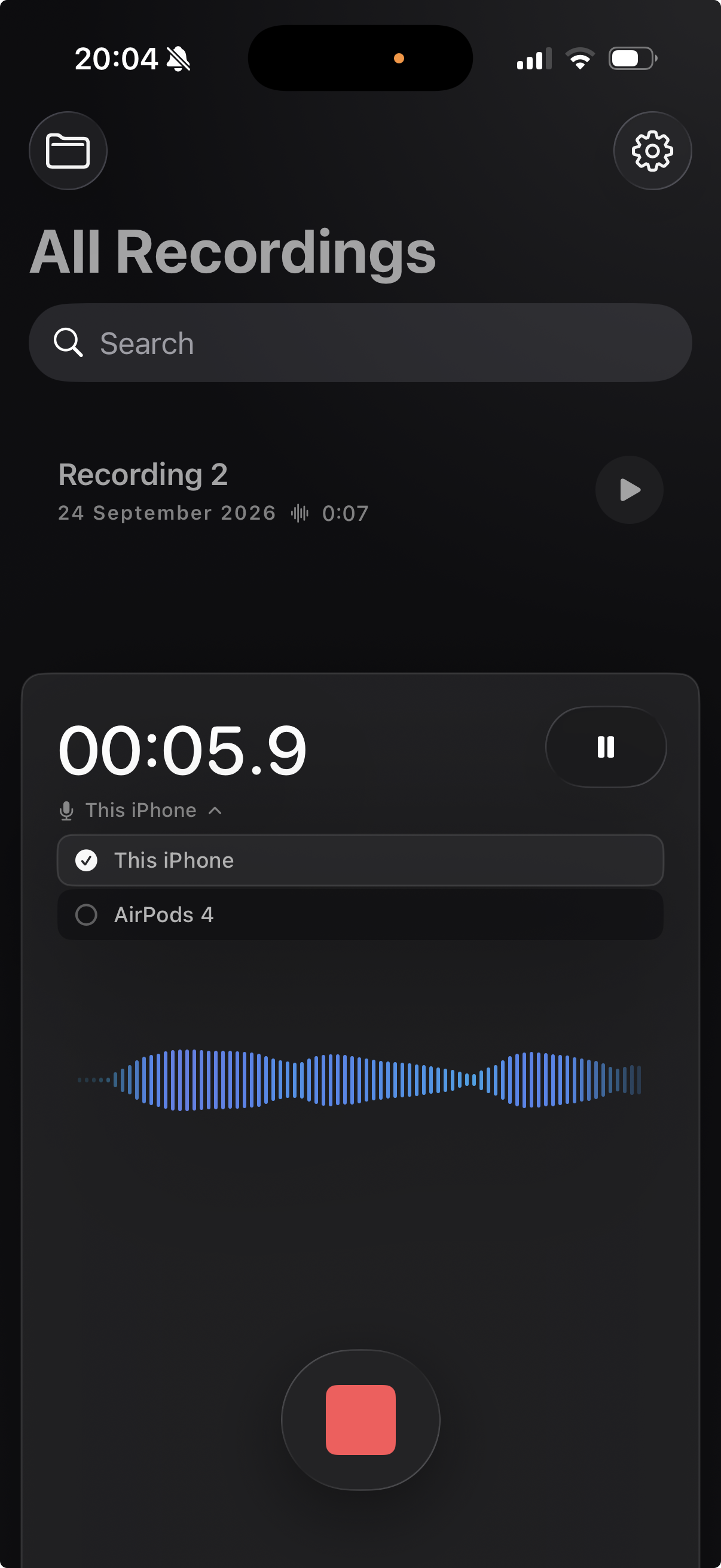
Open Voice Notes. Tap record. Keep listening.
Voice Notes is designed to mix with the audio already playing on your iPhone. Your music, podcast, audiobook, or connected speaker keeps going while you speak the thought. When you finish, you return to listening without having broken the thread.
Stay with the song, podcast, or rhythm that put you in the moment.
Open Voice Notes and record before the idea edits itself away.
Stop the note and keep moving. Your original audio never left.
02 — Your microphone
Use the mic that fits the moment.
Record with your iPhone microphone, use connected AirPods, or switch between available inputs while the recording is already moving. No restart. No lost first sentence.
With AirPods or headphones, the audio stays in your ears while Voice Notes captures your microphone. If music is playing through a room speaker, the microphone may hear that sound naturally along with your voice.
03 — Life in motion
Some thoughts only happen because something else is playing.
A podcast gives you a better question.
Capture your response while the conversation is still warm in your mind.
A lyric unlocks a line of your own.
Say it before the next verse carries it somewhere else.
Your walk finds its rhythm—and so does an idea.
Record with AirPods without turning a passing thought into a stop.
A beat suggests a melody or a change.
Leave yourself the note while the sound that inspired it is still around you.
04 — Set your flow
One switch. Then it simply behaves that way.
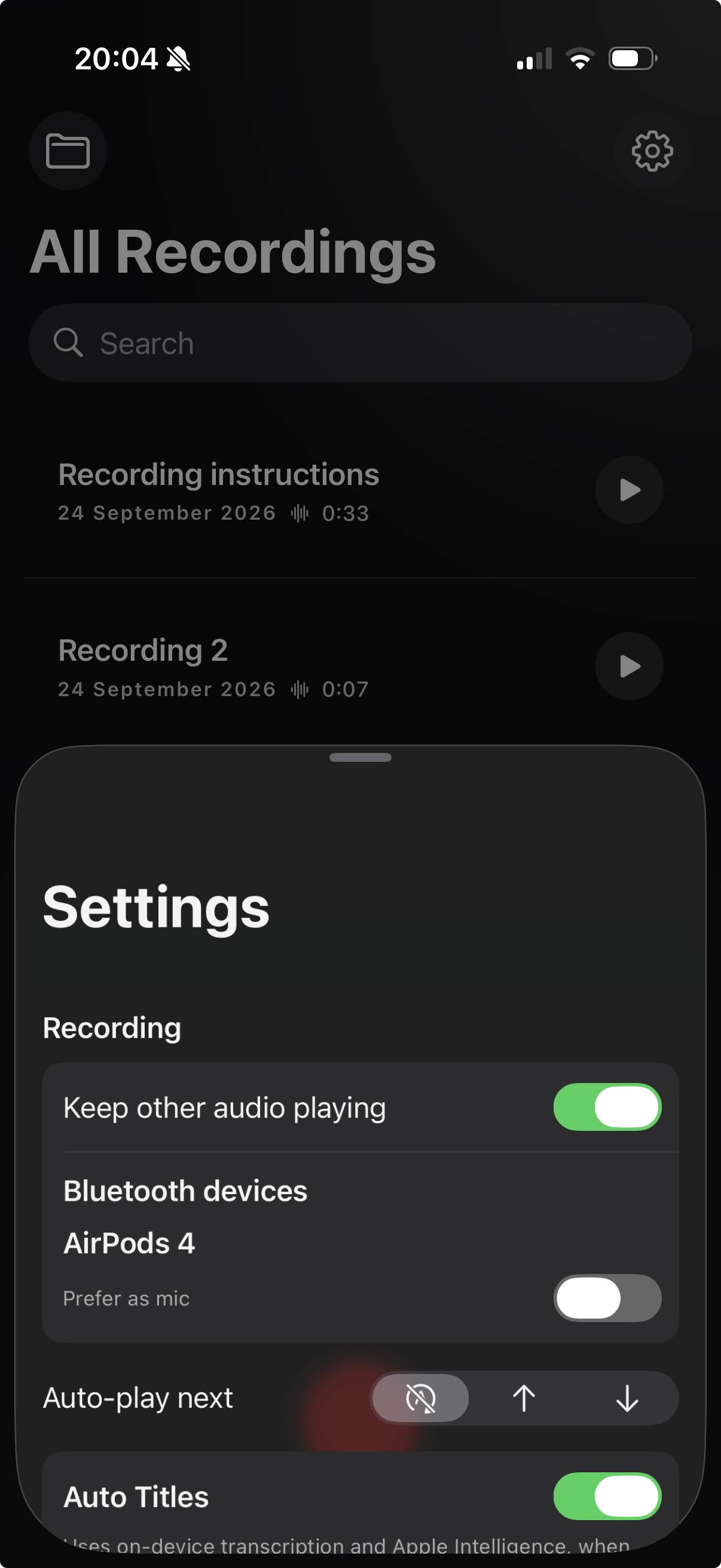
In Voice Notes settings, turn on Keep other audio playing. If you often record through AirPods, you can also prefer them as your microphone whenever they are connected.
- 1
Open Voice Notes and tap Settings.
- 2
Turn on Keep other audio playing.
- 3
Optionally choose a connected Bluetooth device as your preferred mic.
Stay inside the moment
Keep the vibe. Keep the thought.
Voice Notes gives ideas somewhere to land without asking the rest of your world to become quiet first.
