Connect your AI assistant

Your Voice Logs, ready when you ask.

Connect once, then ask your AI assistant about your recordings, transcripts, summaries, and action items.

Voicelogs MCP server https://api.voicelogs.co/mcp
Before you start Make sure cloud sync is on in the Voicelogs app. Use the same email when you connect.

ChatGPT

Connect through Plugins

Open ChatGPT
  1. 1

    Open Plugins

    Open ChatGPT on the web, then choose Plugins from the sidebar.
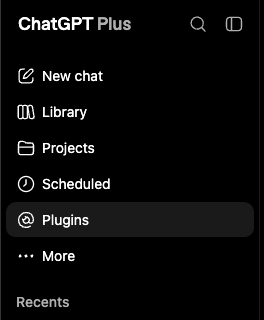
    ChatGPT sidebar with Plugins selected
  2. 2

    Create a plugin

    Select the plus button in the top-right corner of the Plugins page.
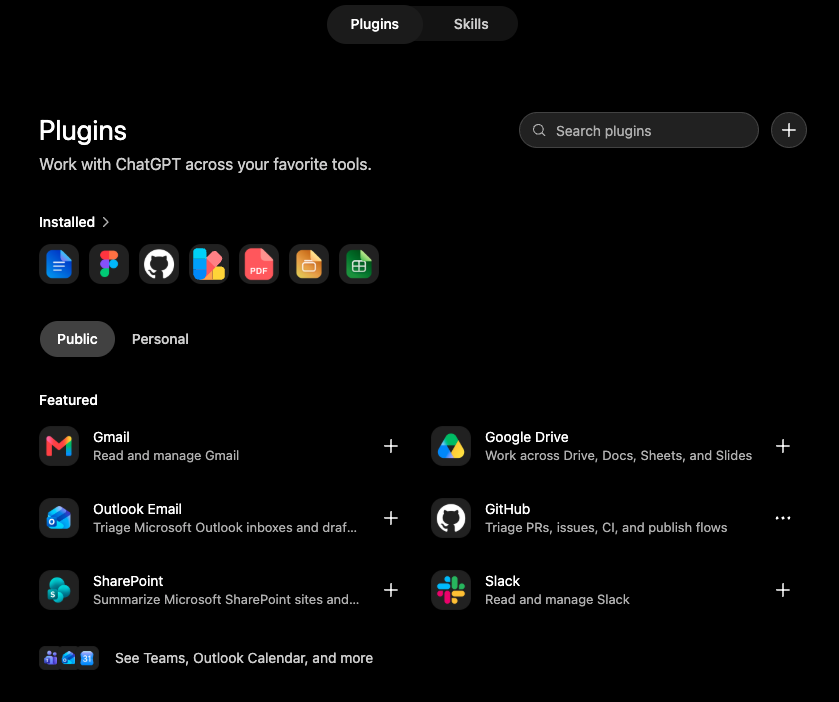
    ChatGPT Plugins page with the plus button highlighted in the top-right corner
  3. 3

    Enter the connection details

    Name it Voicelogs, select Server URL, paste the address below, and keep OAuth selected. Tick “I understand and want to continue”, then select Create.

    https://api.voicelogs.co/mcp
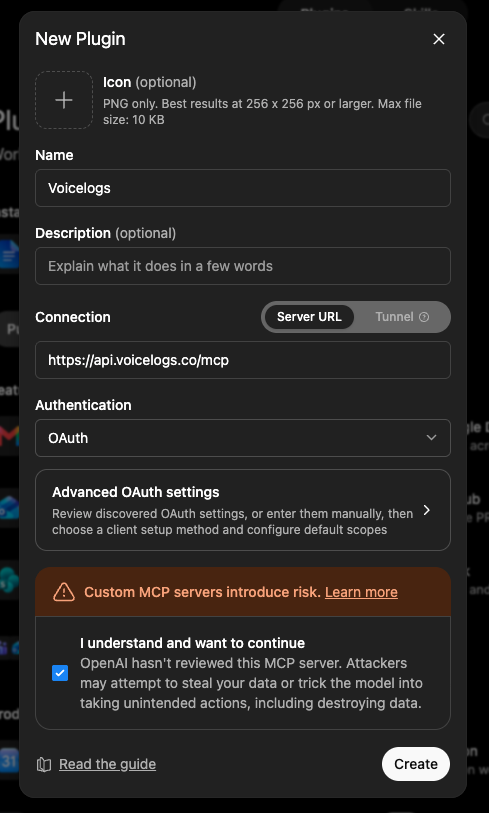
    ChatGPT New Plugin form filled in with the Voicelogs MCP server details
  4. 4

    Connect your account

    When ChatGPT asks for access, select Connect. Sign in with the same email address you use in the Voicelogs mobile app.
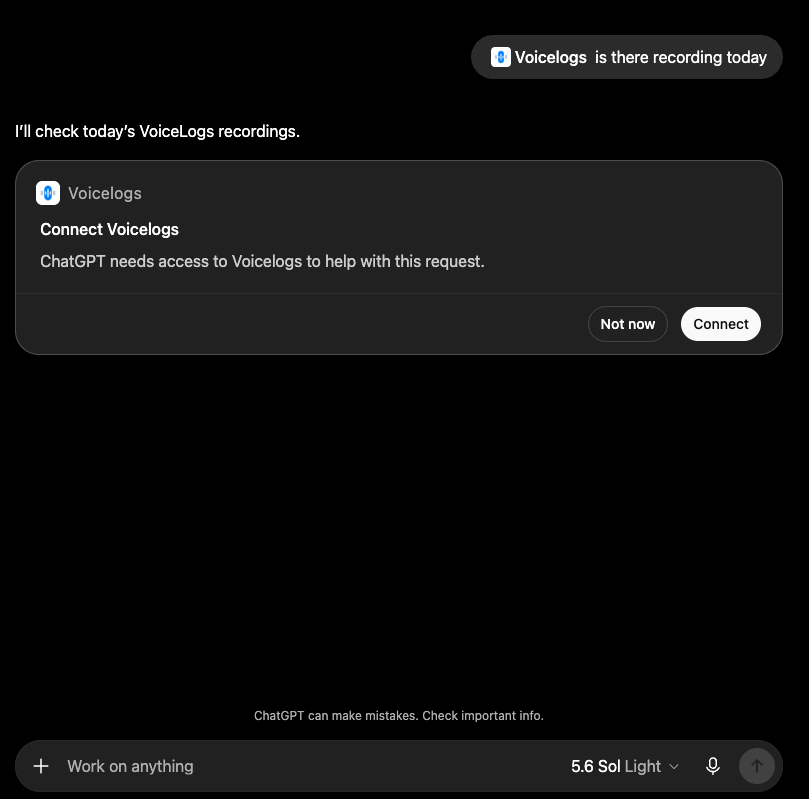
    ChatGPT asking the user to connect their Voicelogs account

Claude

Add a custom connector

Open Claude
  1. 1

    Open Connectors

    In Claude, open Settings, choose Connectors, then select Add → Add custom connector.
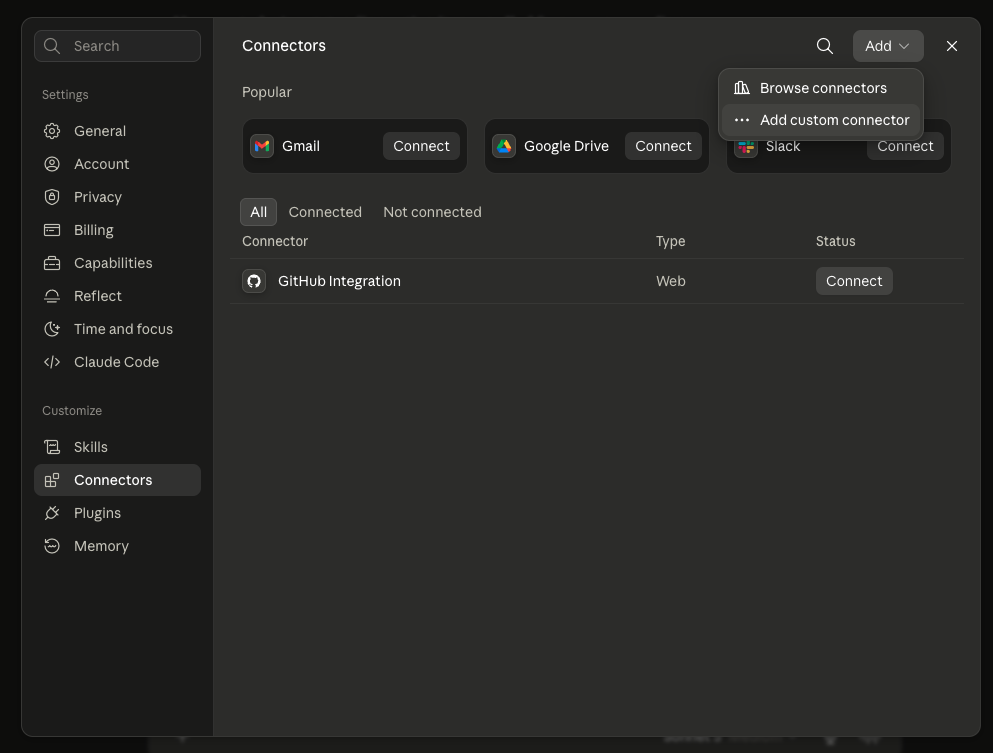
    Claude Connectors settings with Add custom connector selected
  2. 2

    Add Voicelogs

    Enter Voicelogs as the name and paste the server address below. Leave the optional OAuth Client ID and Client Secret fields empty, then select Add.

    https://api.voicelogs.co/mcp
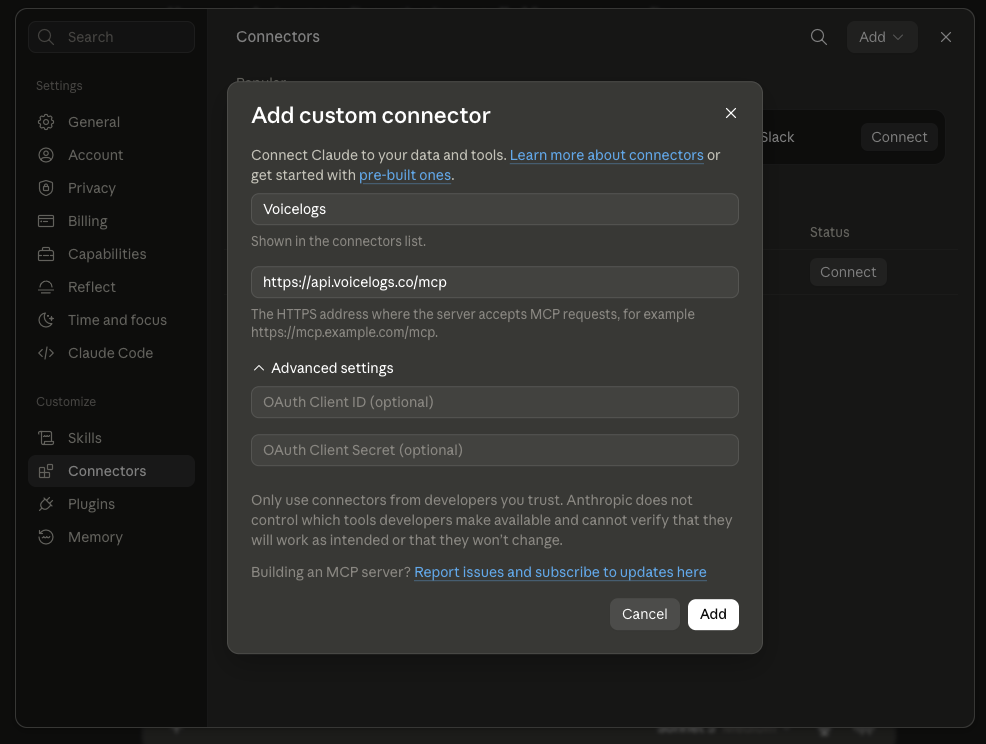
    Claude Add custom connector form filled in with the Voicelogs MCP server details
  3. 3

    Connect your account

    Find Voicelogs in the connectors list and select Connect. Sign in with the same email address you use in the Voicelogs mobile app.
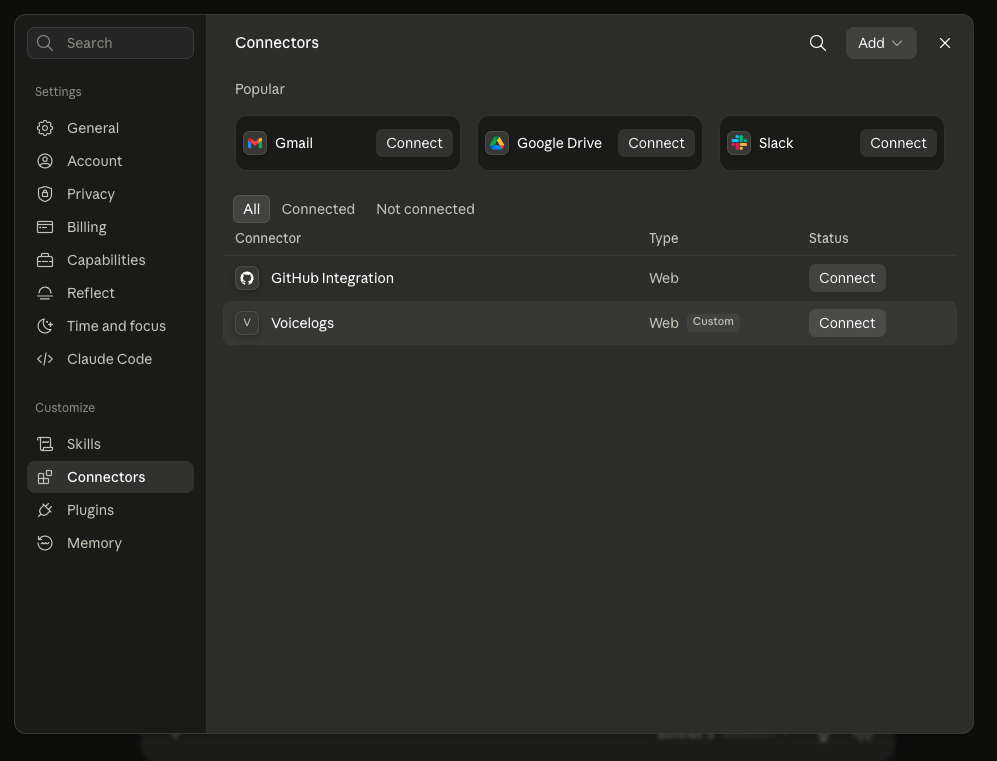
    Claude Connectors list showing Voicelogs with a Connect button

Other MCP clients

Use the standard connection details

Connection details

Name
Voicelogs
Server URL
https://api.voicelogs.co/mcp
Connection
Remote HTTP MCP server
Authentication
OAuth

Connect in four steps

  1. Open your client’s MCP, connector, or integration settings.
  2. Add a remote or custom MCP server and paste the server URL.
  3. Select OAuth if asked. No client ID or client secret is required.
  4. Authorize access using the same email address as the Voicelogs mobile app.

Your client must support remote HTTP MCP servers and browser-based OAuth authentication.